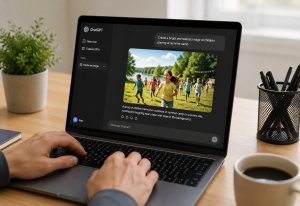
AI tools make it easier than ever to create artwork, logos, and layouts in just a few clicks. But there’s one big catch: what looks great on your screen doesn’t automatically mean it will print well. If the file isn’t set up correctly, you can end up with fuzzy images, cut‑off text, or colors that just don’t look right in print.
At Redmond Imaging, we’re seeing more customers bring in AI artwork. This guide walks through three foundation pieces—resolution, upscaling, and bleeds/safe area—so you can turn your AI designs into print ready AI artwork that looks clean on our digital and offset presses.
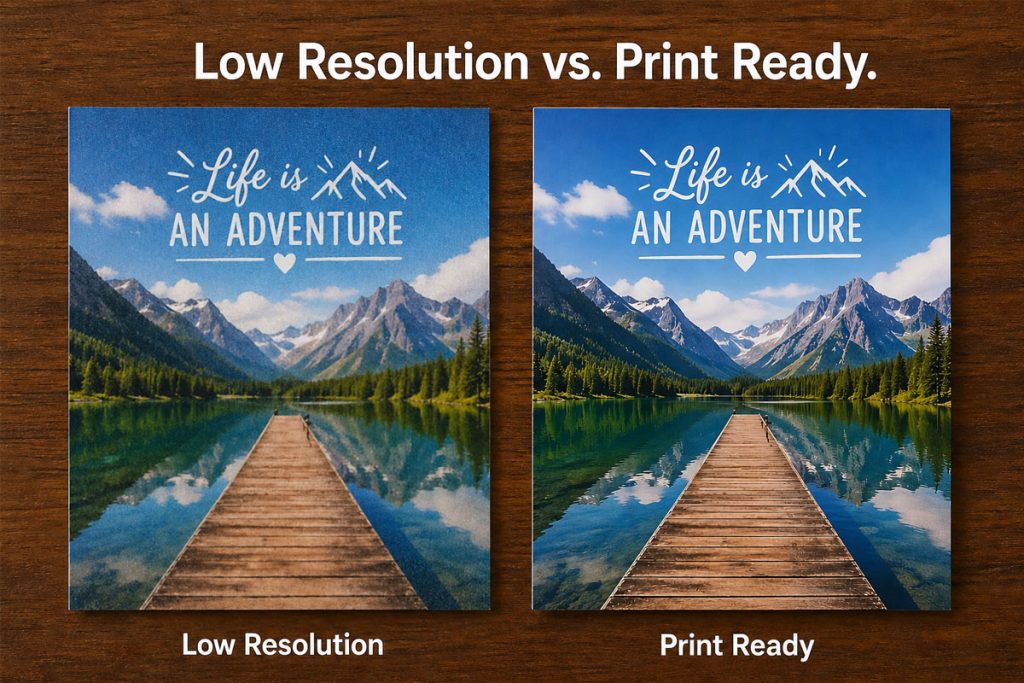
Let’s start with resolution, because it’s one of the most common problem areas.
Resolution is simply how much detail is in your image. On a screen, we talk about pixels (like 1024 × 1024). For print, we often use dpi (dots per inch). Think of dpi as how tightly those pixels are packed into each inch of paper.
- Web images are usually around 72–150 dpi. That’s fine for a website or social media.
- Print ready AI artwork should usually be around 300 dpi at the final print size for most business cards, postcards, brochures, and flyers.
If an image doesn’t have enough detail for the physical size you want, it will look soft, grainy, or pixelated in print—even if it looked “fine” on your monitor.
A simple rule of thumb
If you’re using AI to create artwork, check two things before you send it to print:
- Image size in pixels (for example, 2400 × 3000 pixels).
- The physical size you want to print (for example, 8″ × 10″).
Roughly speaking, if you divide the pixel dimensions by 300, you’ll get the maximum size where the image will still look sharp in print.
- 2400 pixels ÷ 300 = 8 inches
- 3000 pixels ÷ 300 = 10 inches
So a 2400 × 3000 pixel image works well as an 8″ × 10″ print at about 300 dpi.
If the math gives you something much smaller than the size you want, you’ll either need to regenerate a larger image, reduce the print size, or carefully upscale it (more on that next).
How Redmond Imaging can help
If you’re unsure whether your AI design is truly print ready, you don’t have to guess. You can email us the file or bring it in, and we’ll quickly check if it’s strong enough for your business cards, postcards, brochures, or other pieces. If it’s too low for the job, we’ll walk you through your options before anything goes on press.
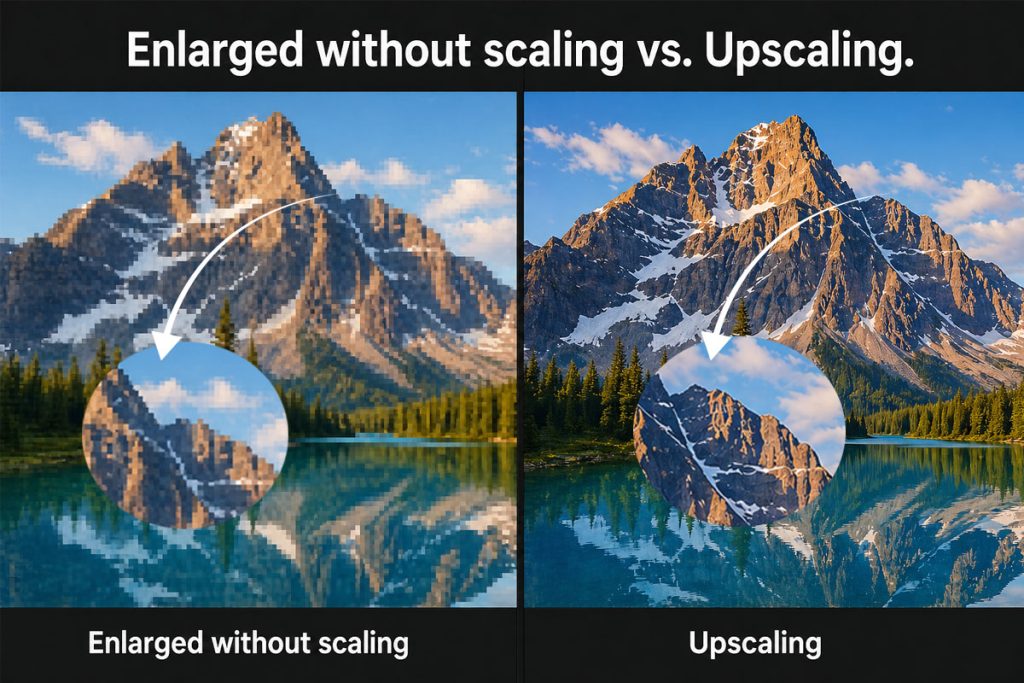
Many AI tools output images at a fixed size—often something like 1024 × 1024 or 1536 × 1536 pixels. That’s not bad, but it can be borderline for larger print pieces. This is where upscaling comes in.
Upscaling means using software to increase the number of pixels in your image so it can be printed larger without looking jagged. There are general photo editors and specialized “AI upscalers” that do this.
What upscaling can do
- Make a slightly small image usable for a modestly larger print size (for example, taking a design that was okay for a 4″ × 4″ card and making it work for a 6″ × 6″ piece).
- Smooth out jagged edges and keep shapes looking reasonably clean.
What upscaling cannot do
Upscaling can’t magically invent detail that never existed. If the original AI image was very small or already blurry, blowing it up a lot may make it look plasticky or overly smooth. Faces, text, and logos are especially sensitive to this.
A good guideline:
- Small increases (for example, 1.5× or 2×) are often fine.
- Huge increases (trying to turn a tiny icon into a large poster) are usually not a good idea.
Where we come in
At Redmond Imaging, we’re happy to take a look at your AI artwork and give you feedback on whether upscaling is safe for the size and type of piece you want:
- Need a stack of postcards?
- Planning a brochure or rack card?
- Considering a small banner?
We can examine your file, test an upscale if needed, and tell you honestly whether it will still look professional when printed on our digital or offset equipment. If the artwork isn’t suitable as‑is, we’ll walk you through your options—tweaks, different sizing, or another approach—so every order feels like money well spent.
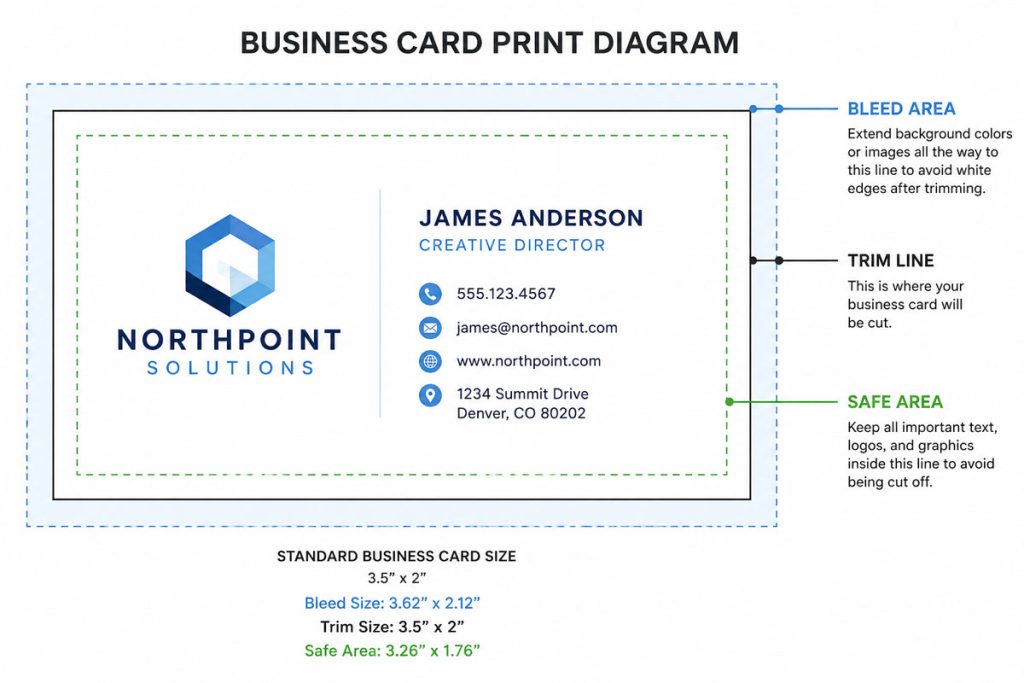
Once resolution and size are under control, the next foundation for print ready AI artwork is how your design sits on the page—especially around the edges. This is where bleeds and safe areas matter.
Commercial printing involves cutting stacks of paper down to final size. Even with precise equipment, there’s always a tiny bit of movement—fractions of an inch. Bleeds and safe areas are how we plan for that movement so your printed piece looks intentional, not accidentally chopped.
What is a bleed?
A bleed is extra image that extends beyond the final cut size. Bleeds are used when color, photos, or background elements go all the way to the edge of the paper.
If your postcard is 5″ × 7″, we don’t print it at exactly 5″ × 7″. We might set it up at 5.25″ × 7.25″ with an extra 1/8″ of image around the sides. After printing, we trim off the extra. That way, when the blade comes down, you get clean color all the way to the edge, without thin white lines.
What is a safe area?
The safe area is the inner zone where important stuff—like logos, headlines, and contact information—should live. By keeping these elements slightly away from the cut edge, you make sure nothing critical gets dangerously close or accidentally trimmed.
A simple way to think about it:
- Add bleed outside the final size so color/photos can run off the edge.
- Keep text and key elements inside a safe margin so they never get clipped.
For many pieces, that might look like:
- 1/8″ bleed around the outside.
- At least 1/8″–1/4″ safety margin inside the final trim for text and logos.
Why AI layouts often miss this
AI tools usually generate artwork meant for a screen. They don’t automatically leave room for bleed or safe areas. That means designs that look perfectly centered digitally might be risky on a real press. Text may sit too close to the edge, or background elements may stop exactly at the edge instead of extending past it.
How Redmond Imaging helps protect your design
When you send us your AI‑generated design for printing, we:
- Check whether a bleed is needed for your piece.
- Make sure important elements are not hugging the edge.
- Adjust or add bleed where possible, or let you know if the layout needs tweaks.
We can also provide sizing for common pieces—like business cards, rack cards, postcards, and brochures—with bleed and safe zones. You can drop your AI artwork into your design software, and you’ll know everything is set up for print from the start.
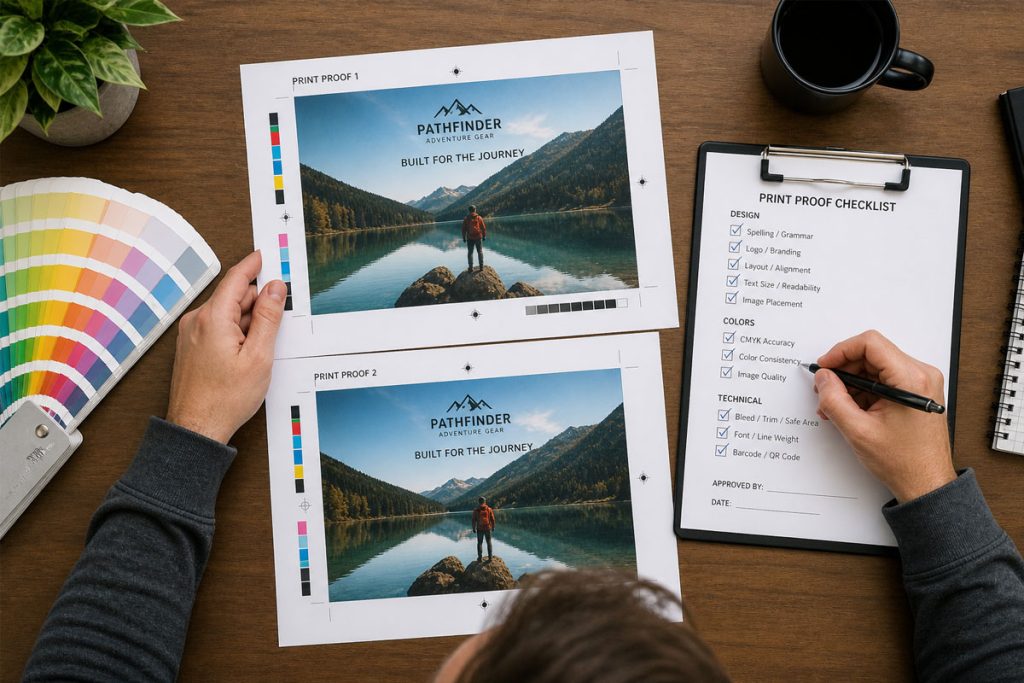
Before you send your AI‑generated design over for printing, run through this quick checklist to make sure it’s as close to print ready AI artwork as possible:
- Size and resolution
- Does the image have enough pixels for the size you want to print?
- Aim for around 300 dpi at final size for sharp, professional results.
- Upscaling (if needed)
- If the image started small, did you carefully upscale it rather than just stretching it?
- Does it still look clean and detailed when you zoom in?
- Bleeds and safe area
- If color or photos run to the edge, did you extend them past the final size to create a bleed?
- Are your logo, text, and important details pulled in from the edge so they won’t be cut off?
If you’re not sure about any of these, that’s exactly where we can help.
AI is a powerful tool for getting ideas out of your head and onto the screen. Our job at Redmond Imaging is to make sure those ideas look just as good—or better—when they land on paper as print ready AI artwork.
Whether you’re using AI to mock up business cards, flyers, brochures, postcards, or other marketing pieces, we can:
- Review your files for resolution and size.
- Advise on safe upscaling and realistic print sizes.
- Add or fix bleed and safe areas.
- Print your pieces on high‑quality digital or offset equipment, so your finished materials match the professional image you want to present.
Upload your AI file, and we’ll help you turn it into something you’ll be proud to hand to a customer.
- “Learn more about our printing capabilities on our Printing Services page.”
- “See how we handle fast, high‑quality runs on our Digital Printing page.”
- “Need long‑run or color‑critical jobs? Explore our Offset Printing services.”
- “Ready to have us review your AI‑generated design? Contact our team for a quick file check or quote.”